Skip to content

Migrating from Google Photos

This comprehensive guide will help you transfer your entire Google Photos library to zeitkapsl using Google Takeout and the zeitkapsl Desktop App.

Overview

The migration process involves two main steps:

  1. Export: Request your data from Google via Google Takeout
  2. Import: Use the zeitkapsl Desktop App to import and encrypt your photos

Privacy-First Migration

Your photos are processed entirely on your device. They're encrypted before upload, ensuring end-to-end encryption throughout the migration. Google data never passes through zeitkapsl servers unencrypted.

What Gets Migrated

The Google Takeout importer preserves:

  • Photos and Videos: All media in original quality
  • GPS/Location Metadata: Geotagging information
  • Timestamps: Date taken, date modified
  • Albums: Your Google Photos albums become zeitkapsl collections
  • Favorites/Likes: Starred/favorited photos maintain their status
  • EXIF Metadata: Camera info, settings, orientation
  • Automatic Deduplication: Photos in multiple albums only stored once

Generic Folders

Generic date-based folders (like "Photos from 2024-03") are not created as separate collections. Instead, photos are searchable by date using zeitkapsl's powerful search features. Named albums (like "Summer Vacation") are preserved as collections.

Prerequisites

Before you begin:

  • A zeitkapsl account (sign up here)
  • zeitkapsl Desktop App (download here)
  • Sufficient free disk space (at least 2x your Google Photos library size)
  • A stable internet connection (Wi-Fi or Ethernet recommended)
  • Available storage quota in your zeitkapsl plan

Storage Requirements

Google Takeout exports can be large. A 100 GB library requires ~100 GB for the export plus additional space during import. Ensure adequate free space before starting.

Step 1: Request Your Google Takeout

1.1 Start the Export

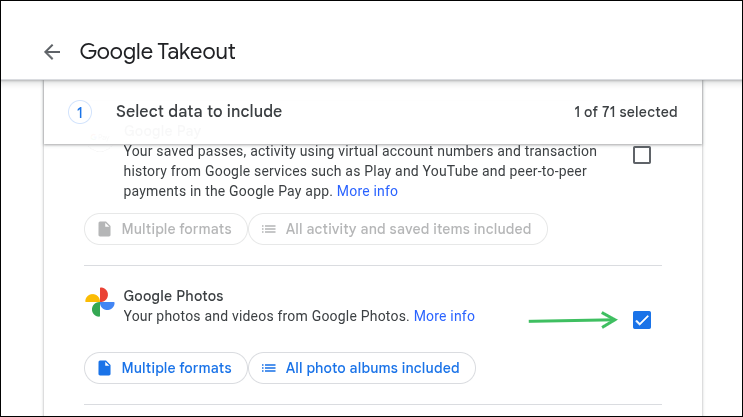
  1. Visit takeout.google.com and log in with your Google account

Screenshot Takeout importer

  1. Click "Deselect all" to clear all products

  2. Scroll down and select only "Google Photos"

  1. Click "Next step" at the bottom

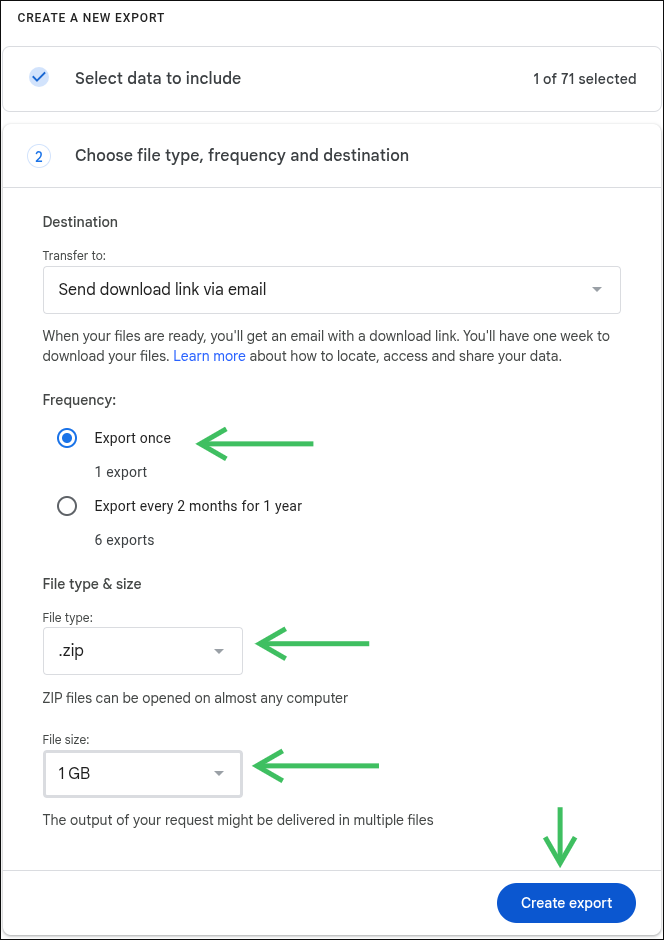
1.2 Configure Export Settings

  1. Delivery method: Choose "Send download link via email" (recommended)

    • Alternatively: "Add to Drive" or "Add to Dropbox"
  2. Frequency: Select "Export once" (not a recurring export)

  3. File type: Choose ".zip" (recommended)

  1. File size: Select "1 GB" (highly recommended)
    • Smaller files import more smoothly
    • Multiple files are easier to manage than one huge file
    • Reduces risk of corrupted downloads

  1. Click "Create export"

1.3 Wait for Google to Process

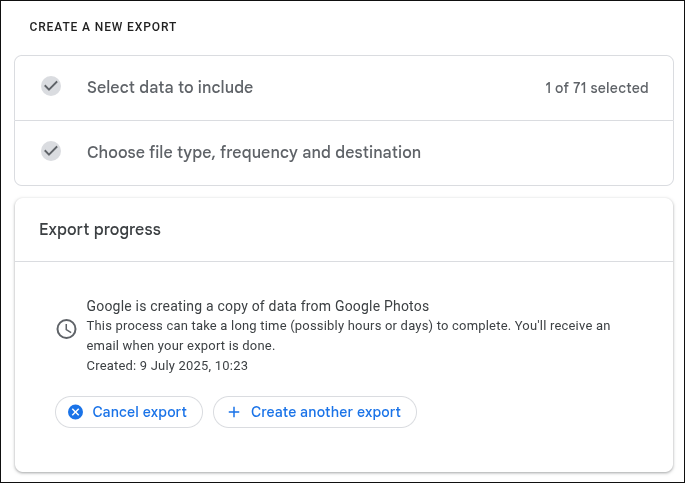
  1. Google will process your export

    • Small libraries (< 10 GB): A few hours
    • Medium libraries (10-100 GB): 12-24 hours
    • Large libraries (100+ GB): 1-3 days
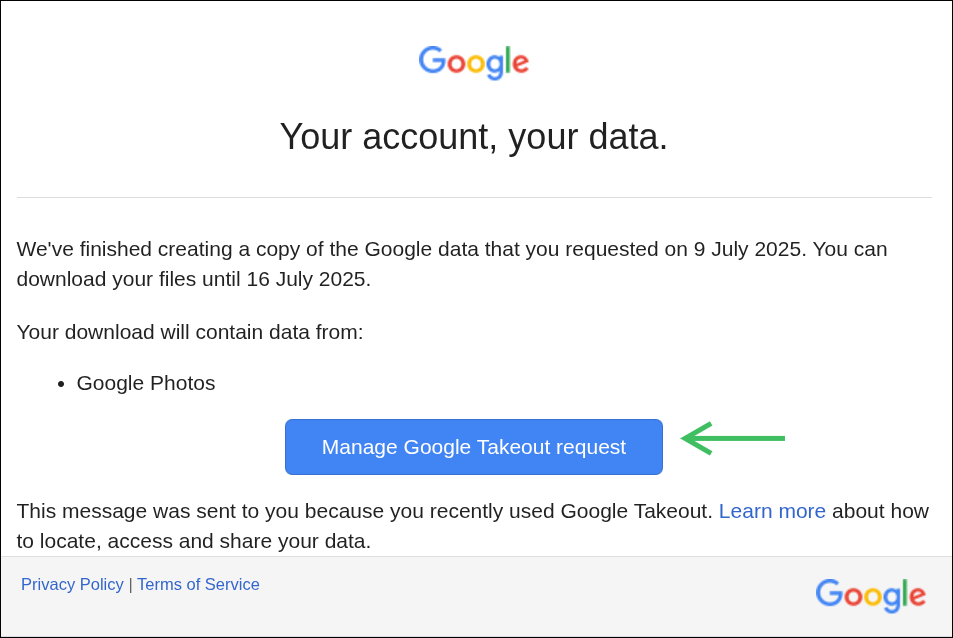
  2. You'll receive an email when the export is ready

[Screenshot: Google email notification that export is ready]

Patience Required

Don't worry if this takes a while. Google processes exports in batches, especially for large libraries. Check your email for the "Your Google data is ready" notification.

1.4 Download Your Export

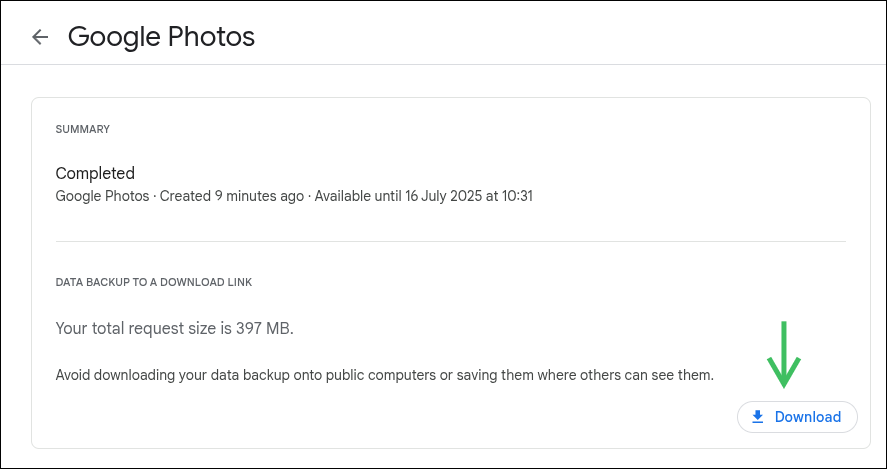
  1. Click the link in the Google email

  2. You'll see a list of downloadable zip files (e.g., takeout-20250204T120000Z-001.zip, -002.zip, etc.)

  1. Download all zip files to a single folder on your computer

    • Create a dedicated folder (e.g., Google Takeout Export)
    • Download all files to this folder
  2. Important: DO NOT extract/unzip these files

    • The zeitkapsl Desktop App reads directly from zip files and therefore reduces required disk space.
    • Extracting wastes disk space and time

[Screenshot: Downloaded zip files in a folder, not extracted]

Download All Files

Ensure you download every single zip file. Missing files will result in an incomplete migration. The files are numbered sequentially (001, 002, 003, etc.).

Step 2: Import into zeitkapsl

2.1 Install and Configure Desktop App

  1. Download the zeitkapsl Desktop App:

  2. Install the application:

    • Windows: Run the installer and follow prompts
    • macOS: Open DMG and drag to Applications
    • Linux: Make AppImage executable or install deb/rpm
  3. Launch the zeitkapsl Desktop App

  4. Log in with your zeitkapsl credentials

2.2 Start the Google Takeout Import

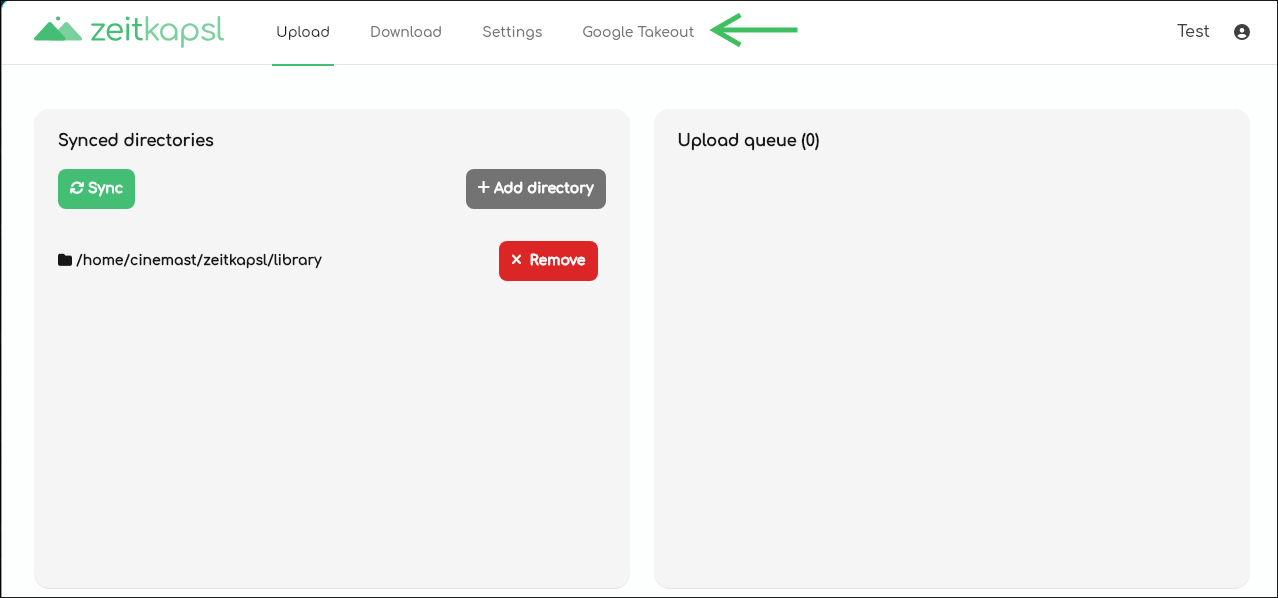
  1. In the Desktop App, navigate to the "Google Takeout" tab

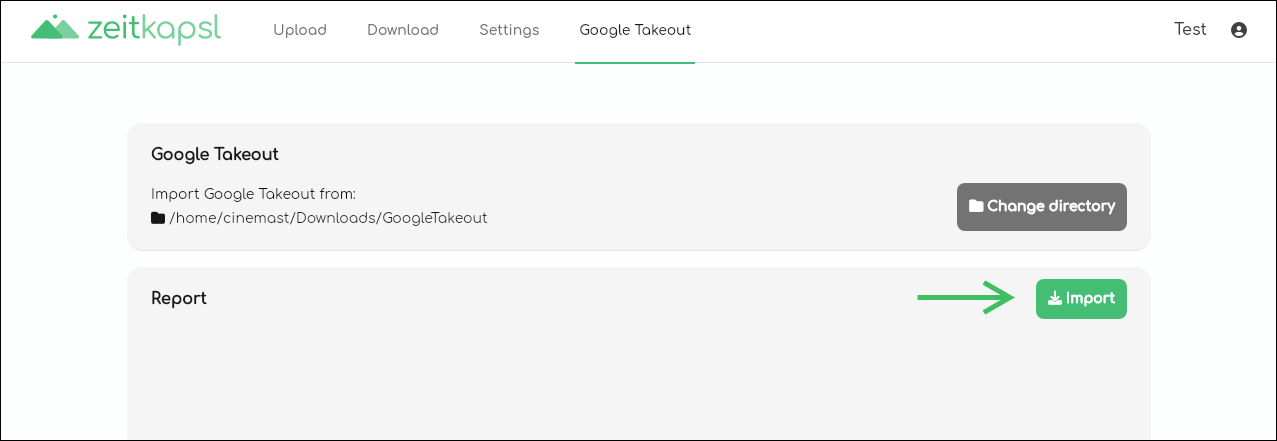
  1. Click "Select Folder" or "Choose Takeout Folder"

  1. Browse to the folder containing your downloaded zip files

  2. Select the folder (not individual files) and click "Select" or "Open"

  3. The app will scan the folder and detect the zip files

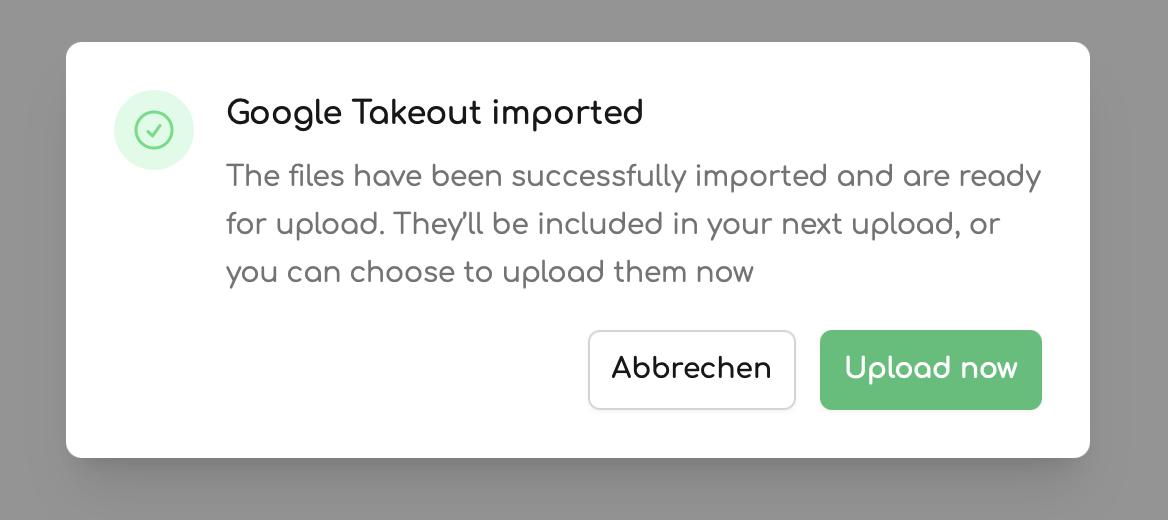
  1. Click "Start Import" or "Import"

No Extraction Needed

The zeitkapsl Desktop App intelligently reads zip files directly without requiring extraction. This saves disk space and speeds up the process.

2.3 Monitor Import Progress

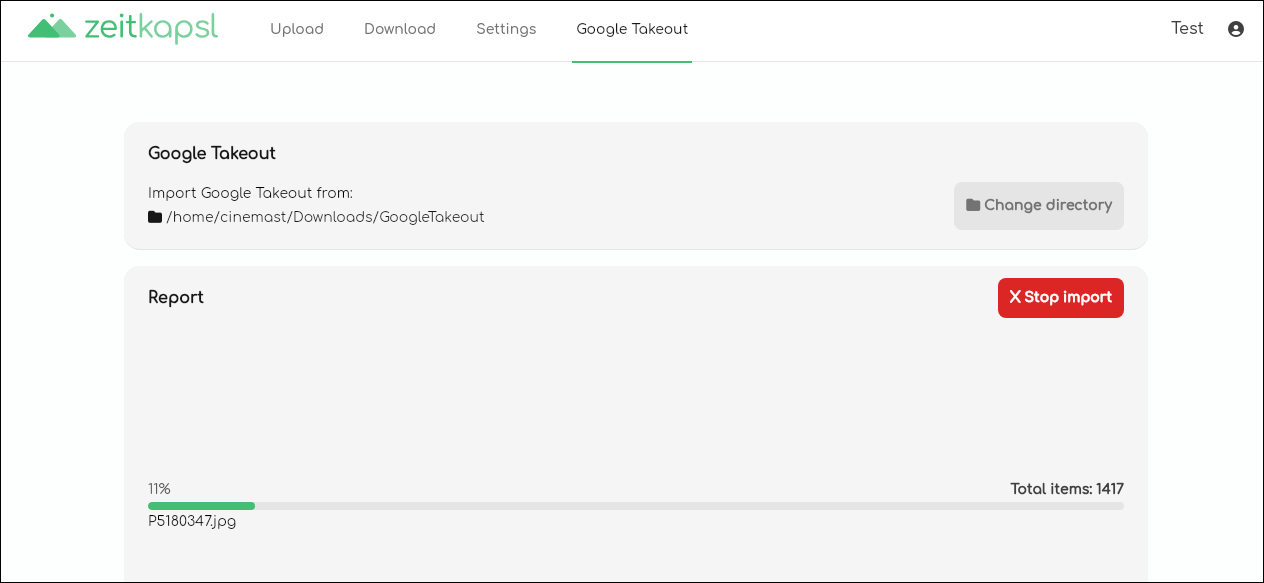
The import process has multiple stages:

Stage 1: Reading Zip Files

  • The app reads metadata from Google Takeout archives
  • Shows number of files detected

Stage 2: Processing Media

  • Extracts EXIF metadata (date, location, camera info)
  • Generates thumbnails and previews locally
  • Encrypts all media and metadata
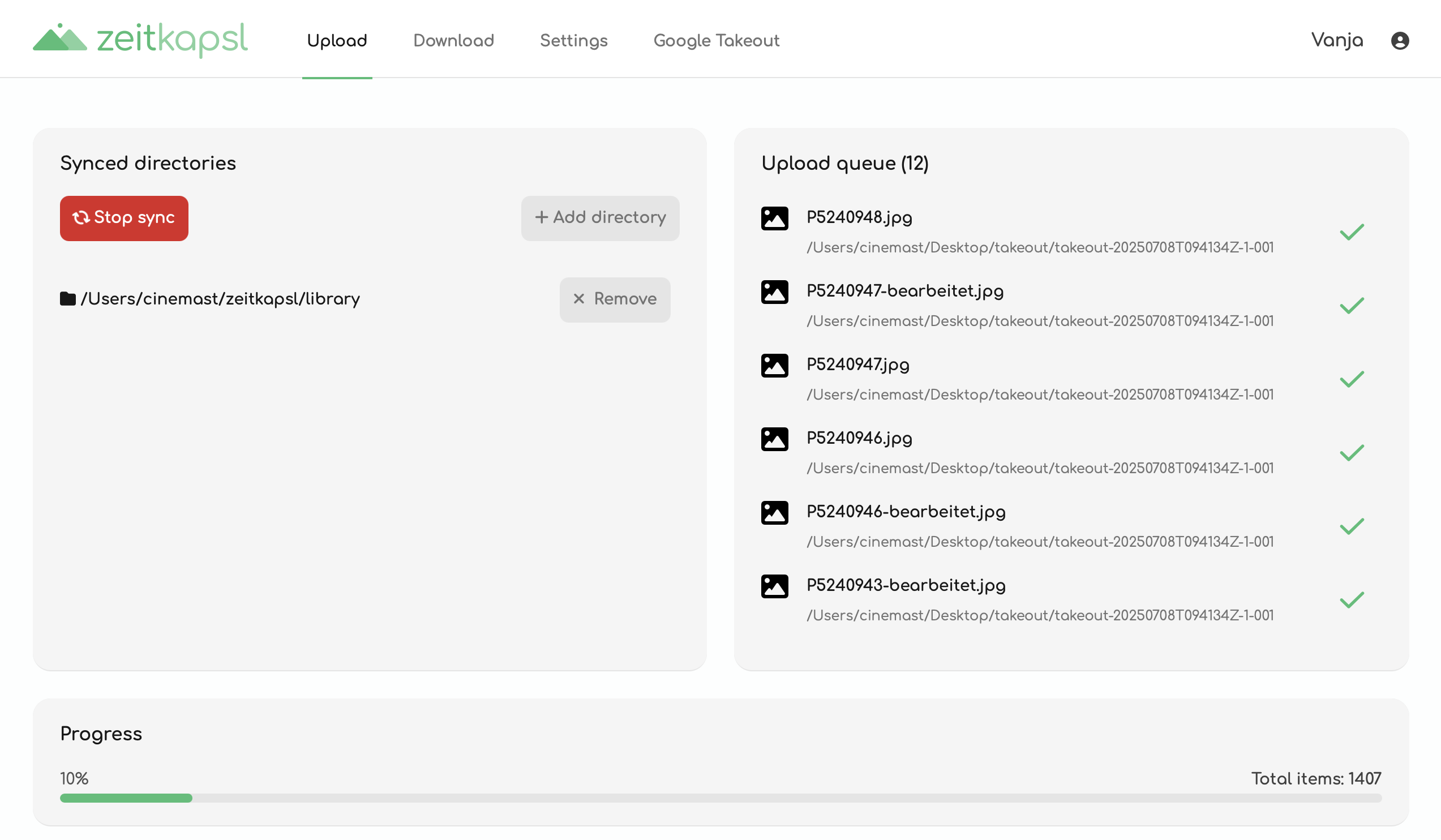
  • Progress shows processed files and remaining files

Stage 3: Uploading

  • Encrypted media uploads to zeitkapsl servers
  • Progress shows upload speed and estimated time remaining

[Screenshot: Upload progress with bandwidth usage]

Processing Time

  • Reading: Fast (minutes)
  • Processing: Medium (depends on CPU)
  • Uploading: Slowest (depends on internet speed)

A 50 GB library might take:

  • 10 minutes to read
  • 1-3 hours to process
  • 5-10 hours to upload (on 10 Mbps upload)

2.4 Import Best Practices

Do's:

  • ✅ Keep your computer plugged in (disable sleep mode)
  • ✅ Use a stable Wi-Fi or Ethernet connection
  • ✅ Leave the Desktop App running in the foreground
  • ✅ Monitor progress occasionally
  • ✅ Ensure sufficient disk space for temp files

Don'ts:

  • ❌ Don't close the Desktop App during import
  • ❌ Don't let your computer sleep
  • ❌ Don't disconnect from the internet
  • ❌ Don't delete zip files until import completes
  • ❌ Don't extract the zip files manually

Pause and Resume

If you need to stop the import:

  • The app supports pausing and resuming
  • Click "Pause" to temporarily stop
  • Click "Resume" when ready to continue
  • Already processed files are not re-processed

Step 3: Verify Your Migration

After import completes, verify everything transferred correctly:

3.1 Check Item Counts

  1. Open the zeitkapsl web app (app.zeitkapsl.eu)

  2. Navigate to SettingsStorage

[Screenshot: Settings showing storage usage and item count]

  1. Compare the photo/video count to your Google Photos library
    • Note: Count may differ slightly due to duplicates or unsupported formats

3.2 Verify Albums/Collections

  1. Navigate to Collections in zeitkapsl

  2. Your Google Photos albums should appear as collections

[Screenshot: Collections view showing imported Google Photos albums]

  1. Open a few collections and verify contents

  2. Check that album names are preserved

3.3 Spot Check Photos

  1. Browse your photos in the Photos tab

  2. Open several photos at random

  3. Verify:

    • Photos display correctly
    • Original quality is maintained
    • Dates are correct (check photo info)
    • GPS location data is preserved (if applicable)

[Screenshot: Photo info showing date and location metadata]

3.4 Check Favorites

  1. Navigate to Favorites (if available in UI)

  2. Verify that starred/favorited photos from Google Photos are marked as liked

3.5 Check Map View

If you had geotagged photos:

  1. Navigate to the Map view

[Screenshot: Map view with imported geotagged photos]

  1. Verify photos appear at correct locations

  2. Check that location-based search works

What Happens to Your Google Photos?

Google Photos Remains Unchanged

Importing to zeitkapsl does not delete your Google Photos. Your Google account is unaffected. You're creating a copy in zeitkapsl, not moving photos.

After successful migration, you can:

  • Keep both Google Photos and zeitkapsl (redundancy)
  • Delete Google Photos library to free quota (after verifying)
  • Download and delete Google Photos as local backup

Why Not Direct Import from Google?

You might wonder why zeitkapsl can't directly import from Google's servers:

Privacy First

Direct server-to-server import would require:

  • zeitkapsl servers accessing your Google account
  • Google photos passing through zeitkapsl servers unencrypted
  • Temporary storage of plaintext photos server-side
  • Violation of end-to-end encryption principles

The Google Takeout method ensures your photos are encrypted on your device before upload. They never exist unencrypted on zeitkapsl servers.

This design choice prioritizes your privacy over convenience.

Frequently Asked Questions

Do I need to extract the zip files?

No. The zeitkapsl Desktop App reads directly from zip archives without extraction. This saves time and disk space.

Can I import multiple Google Takeout exports?

Yes, but import them one at a time. Don't mix zip files from different exports in the same folder.

What happens to Motion Photos?

Google Motion Photos (photo + video) are handled intelligently:

  • The photo component is always imported
  • The video component is imported if supported
  • May appear as separate items in zeitkapsl

Will this delete my Google Photos?

No. The import process creates a copy in zeitkapsl. Your Google Photos library remains unchanged. You must manually delete from Google if desired.

How long does migration take?

Depends on library size and internet speed:

  • 10 GB library: 2-4 hours
  • 50 GB library: 8-12 hours
  • 100 GB library: 1-2 days
  • 500 GB library: Several days

Can I use my computer during import?

Yes, but avoid:

  • Intensive tasks that max out CPU/RAM
  • Disconnecting from internet
  • Letting the computer sleep
  • Closing the Desktop App

What if import fails midway?

The Desktop App supports resuming:

  1. Restart the app
  2. Navigate to Google Takeout tab
  3. Select the same folder
  4. Click "Resume" or "Import" (it skips already-processed files)

Are Live Photos supported?

Yes. Apple Live Photos are imported:

  • The photo component is always imported
  • The video component is imported separately
  • They're linked in zeitkapsl when possible

Can I import to multiple accounts?

Yes, but import to one account at a time:

  1. Import to first account
  2. Log out of Desktop App
  3. Log in to second account
  4. Repeat import process

This duplicates storage usage across accounts.


Welcome to zeitkapsl! Enjoy your privacy-first photo backup.

GPLv3 Licensed